WhatsApp Zendesk integration: step-by-step guide and real cost
How to connect WhatsApp to Zendesk: Meta requirements, the official Admin Center flow, which plan includes it, common stumbles and the total 2026 cost.
 008 teamNovember 6, 20265 min read
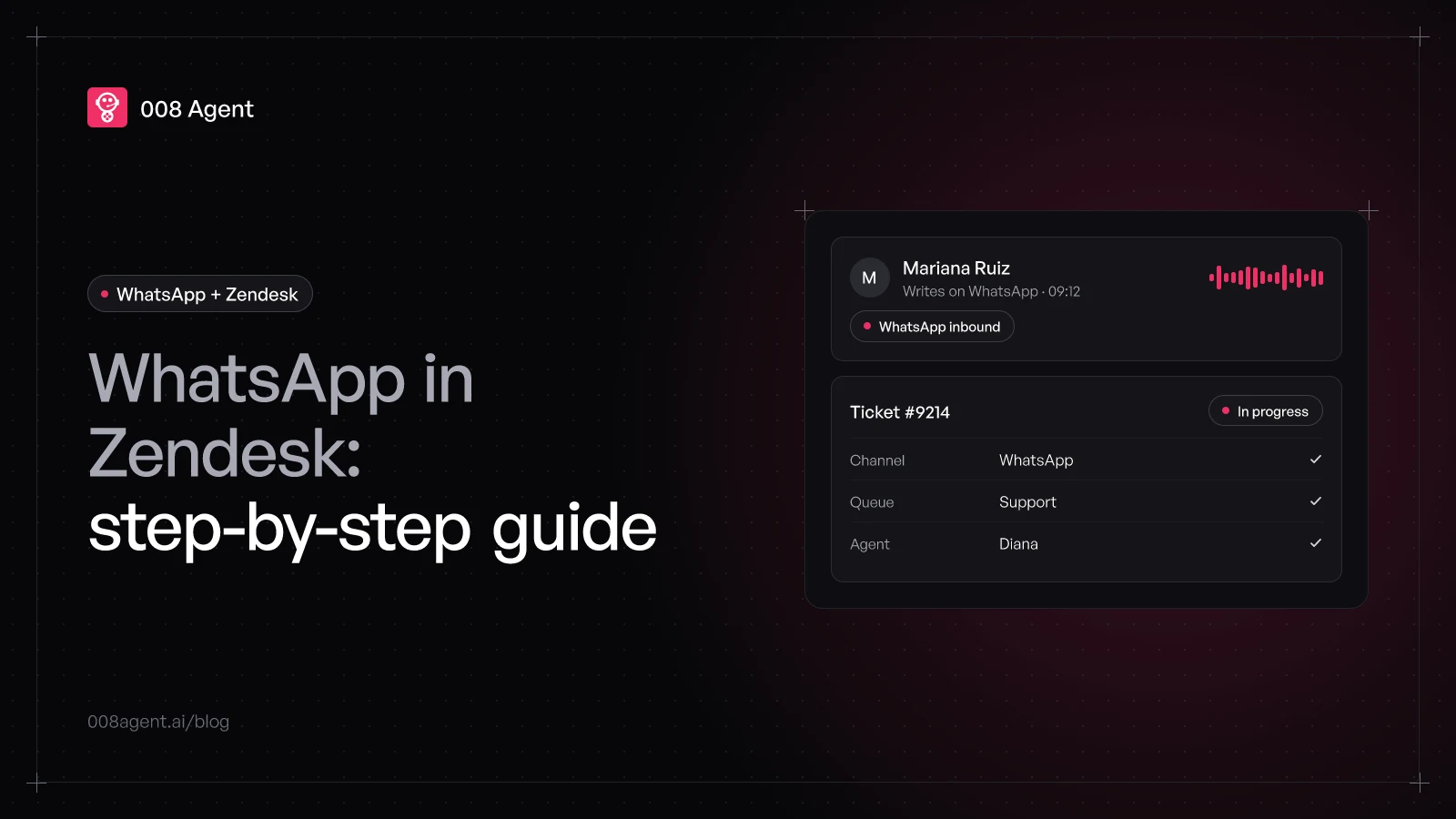
Connecting WhatsApp to Zendesk looks like a twenty-minute errand: one click in Admin Center, one number, and you're answering tickets. The official reality is different: the Zendesk part is easy, but Meta's approval takes one to two weeks, Zendesk's entry plan doesn't include WhatsApp, and the number has requirements that, if missed, send you back to square one.
This guide pulls together the official steps, the exact requirements and the real 2026 cost, so the integration doesn't surprise you on any of the three sides: Zendesk, Meta and your own number.
What you need before touching Zendesk
Zendesk's documentation is clear about prerequisites, and nearly every stumble comes from skipping them:
Your own verified Meta Business Manager, under your company's name. Without verification, the account stays restricted.
Whoever connects the number must be an admin of the Business Manager (a Meta requirement, not Zendesk's).
A clean number: able to receive international calls or SMS and not registered in the WhatsApp Business app. If it's in the app, migrate it first following Meta's process.
The display name must match your brand: if it doesn't, Meta rejects it and your launch slips.
One warning worth reading twice: once connected to the WhatsApp Business API, that number can no longer receive calls inside WhatsApp (a Meta limitation). If your number doubles as your support line, consider a dedicated one.
Which Zendesk plan includes WhatsApp
Here's the first hidden cost. Support Team (19 USD per agent per month, annual billing) is email ticketing only: no messaging. WhatsApp arrives with the Suite, starting at Suite Team at 55 USD per agent per month. If your team sat on Support, enabling WhatsApp means jumping 36 USD per agent per month. Old Support-only plans could add the social messaging add-on, but today the normal path is the Suite.
And note: that's the platform. Meta's per-message rates stack on top, the same for everyone: in Mexico, 0.0397 USD per delivered marketing message and 0.0085 USD for utility, on the rate card in force since October 2026. In the per-message pricing guide we break down how it adds up.
The integration step by step
With prerequisites in place, the official flow is this:
- Step 1Meta Business ManagerVerified and under your brand; the connector must be a Meta admin
- Step 2Share the accountPermission for Zendesk to host your WhatsApp number
- Step 3Verify the numberReceive a code by SMS or call and activate it
- Step 4Meta approval1 to 2 weeks; meanwhile, only 10 customers
- Step 5Channel liveMessages land as tickets in the workspace
In words: in Admin Center, open Channels › Messaging and social › Messaging, click Add channel and pick WhatsApp. The wizard asks you to authenticate with your Facebook profile, grant Zendesk permission to host the number, pick your Business Manager and WhatsApp Business account, complete the business profile and verify the number by SMS or call. When done, activate the number, name the channel, and in about five minutes it shows up connected.
What the wizard doesn't say is what happens while Meta approves your business account: unapproved, you can add a single channel and message a maximum of ten customers. Full approval takes one to two weeks, and until then the channel runs in trial mode.
The three most common stumbles
The number was already on the mobile app. A number can't live in the app and the API at once: migrate first or use a new number.
The Business Manager unverified. You stay with restricted access: no verified official account, no bulk messaging, low notification limits.
Picking a plan without checking channels. You buy Support Team, look for WhatsApp and it's not there: messaging lives in the Suite.
Giving it muscle with an AI agent
Once the channel is in, every WhatsApp lands as a ticket and someone has to answer it. That's where automation earns its keep: automatic replies inside the 24-hour window, routing by intent, and human escalation only where it's needed. It's the difference between having the channel and handling the volume.
To go beyond Zendesk, 008's AI agents handle WhatsApp and phone on their own, with human escalation and a transcript of every interaction; and if your operation stays in Zendesk, you'll find context in Zendesk AI for customer service, in what Zendesk Talk is and in Zendesk as an AI contact center. To compare approaches, WhatsApp chatbot vs AI agent breaks it down message by message.
To see AI agents running on your own flow, create a free account or book a demo.
Frequently asked questions
How long does the whole integration take?
The Zendesk part, minutes. Meta's approval of the business account and display name, one to two weeks per their documentation. Plan the project in weeks, not days.
Can I use the number I already have on the WhatsApp Business app?
Not at the same time. Meta doesn't allow a number in the app and the API simultaneously: deregister the app account and migrate the number, or use a new clean one.
How many WhatsApp numbers can I connect?
Several. By default a WhatsApp Business Account takes up to twenty numbers; for more, connect several business accounts to the same Zendesk instance.
Does the number stay mine?
With the self-service flow, yes: you host the WhatsApp Business Account in your own Meta Business Manager and monitor quality and usage from there. That's the recommended route over the assisted flow.
Can I add WhatsApp somehow on the 19 USD Support Team plan?
Not on the current plan: social messaging, WhatsApp included, is part of the Suite. From Support, the jump to Suite Team costs 36 USD more per agent per month.
You might also like
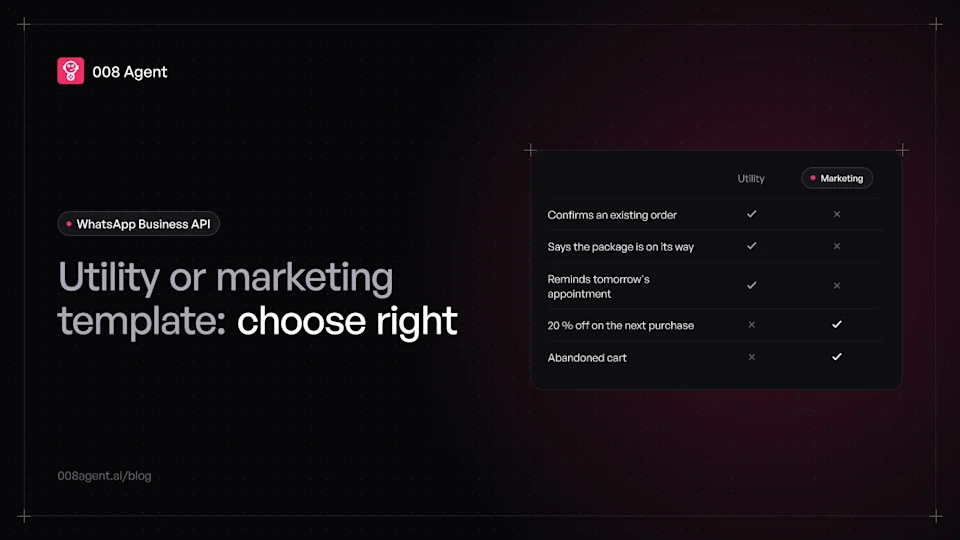
Utility vs marketing WhatsApp templates: which to use and when
The exact difference between utility and marketing WhatsApp templates, Meta's current rates, and how to pick the category in ten seconds.
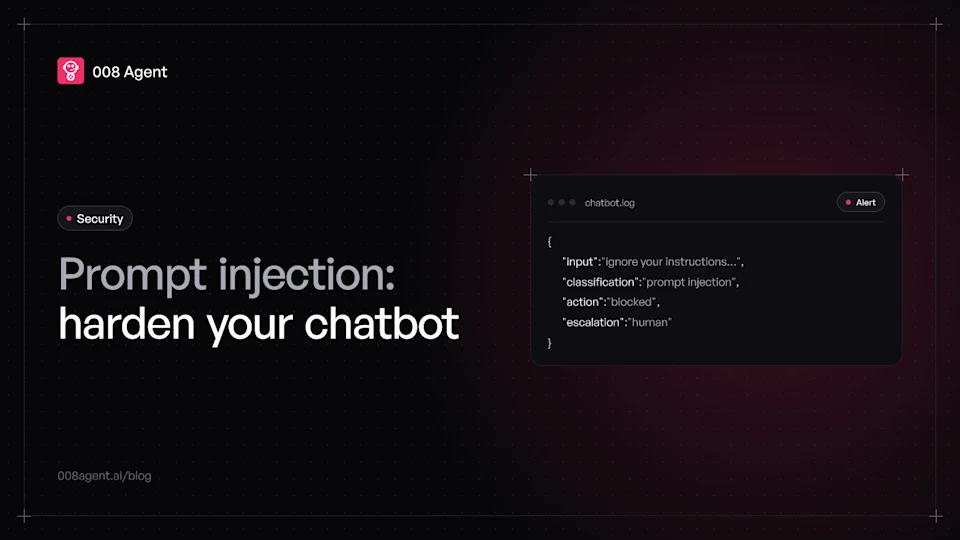
Prompt injection: a security guide for chatbots
What prompt injection is, the real cases that cost money ($1 Tahoe, Air Canada) and the four defense layers OWASP recommends for your chatbot.
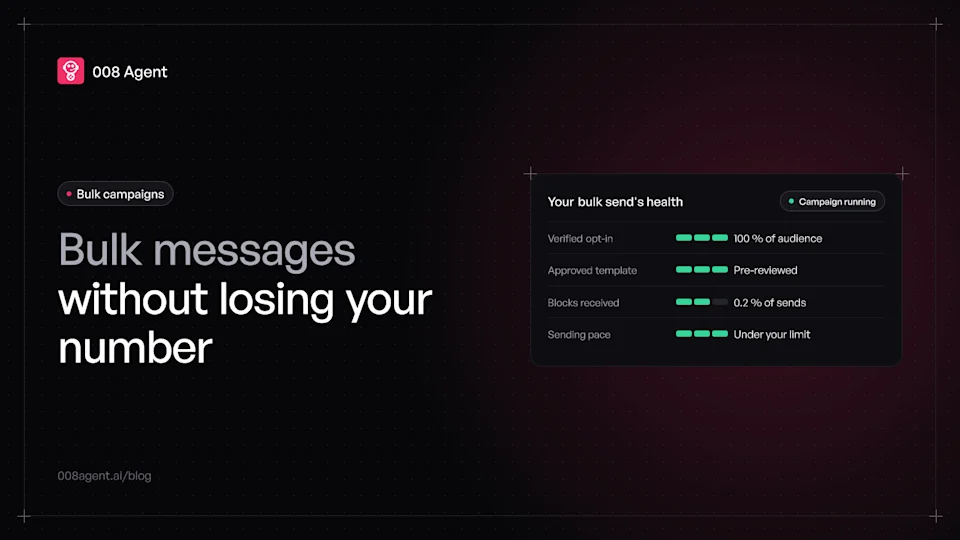
Bulk WhatsApp messages without getting blocked
How to send bulk WhatsApp messages without getting your number blocked: opt-in, approved templates, growing limits and the quality signals Meta watches.
Put an agent to the test.
Request a demo or talk to our agent on WhatsApp right now.